How to Prevent Specific Content from Being Auto-Translated
Gelacy automatically translates your storefront content to help customers browse your store in their preferred language. However, some content should remain unchanged regardless of the selected language.
Common examples include:
- Brand names
- Product names
- Product vendors
- Product variants (Size, Color, Material, etc.)
- Custom labels or text
- Footer content
To prevent specific content from being translated, you can add the notranslate class to the HTML element that contains that content.
This guide requires basic knowledge of Shopify theme customization and HTML.
Since every Shopify theme is structured differently, the exact file locations may vary from one store to another.
How the notranslate Class Works
Gelacy ignores any content contained within an element that has the notranslate class.
Example:
<div class="notranslate">
  Content that should not be translated
</div>
Any text inside this element will remain unchanged when customers switch languages.
Step 1: Open Your Theme Code
- From your Shopify admin, go to Online Store → Themes.
- Locate your active theme.
- Click ⋮ → Edit code.
Step 2: Identify the Content You Want to Protect
Because theme structures differ, the easiest way to locate content is by using your browser's inspection tools.
Inspect the Content
- Open your storefront.
- Navigate to the page containing the content you want to exclude.
- Right-click the content.
- Select Inspect.
- Find the HTML element that contains the text.
- Take note of any class names, IDs, or Liquid variables associated with that element.
Once identified, search for those values inside your Shopify theme files.
Step 3: Add the notranslate Class
After locating the corresponding code in your theme, add the notranslate class to the element.
Example:
<h1 class="product-title notranslate">
  Product Name
</h1>
Or, if no class exists:
<h1 class="notranslate">
  Product Name
</h1>
Common Use Cases
Prevent Brand Names from Being Translated
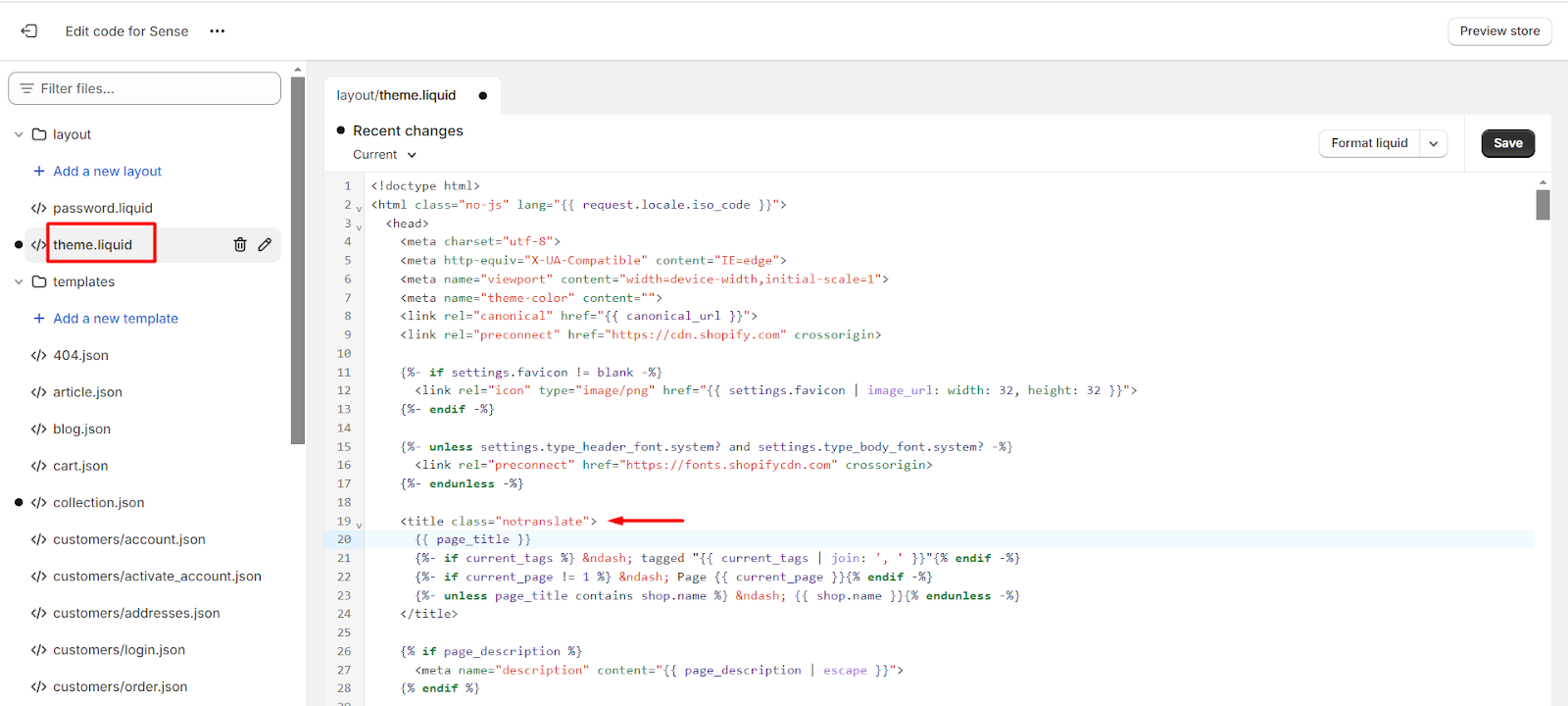
Brand names are commonly displayed in the browser tab title.
- Open
theme.liquid. - Locate the
<title>element. - Find the section that outputs your store or brand name.
- Add the
notranslateclass to the appropriate wrapper element.
Prevent Product Titles from Being Translated
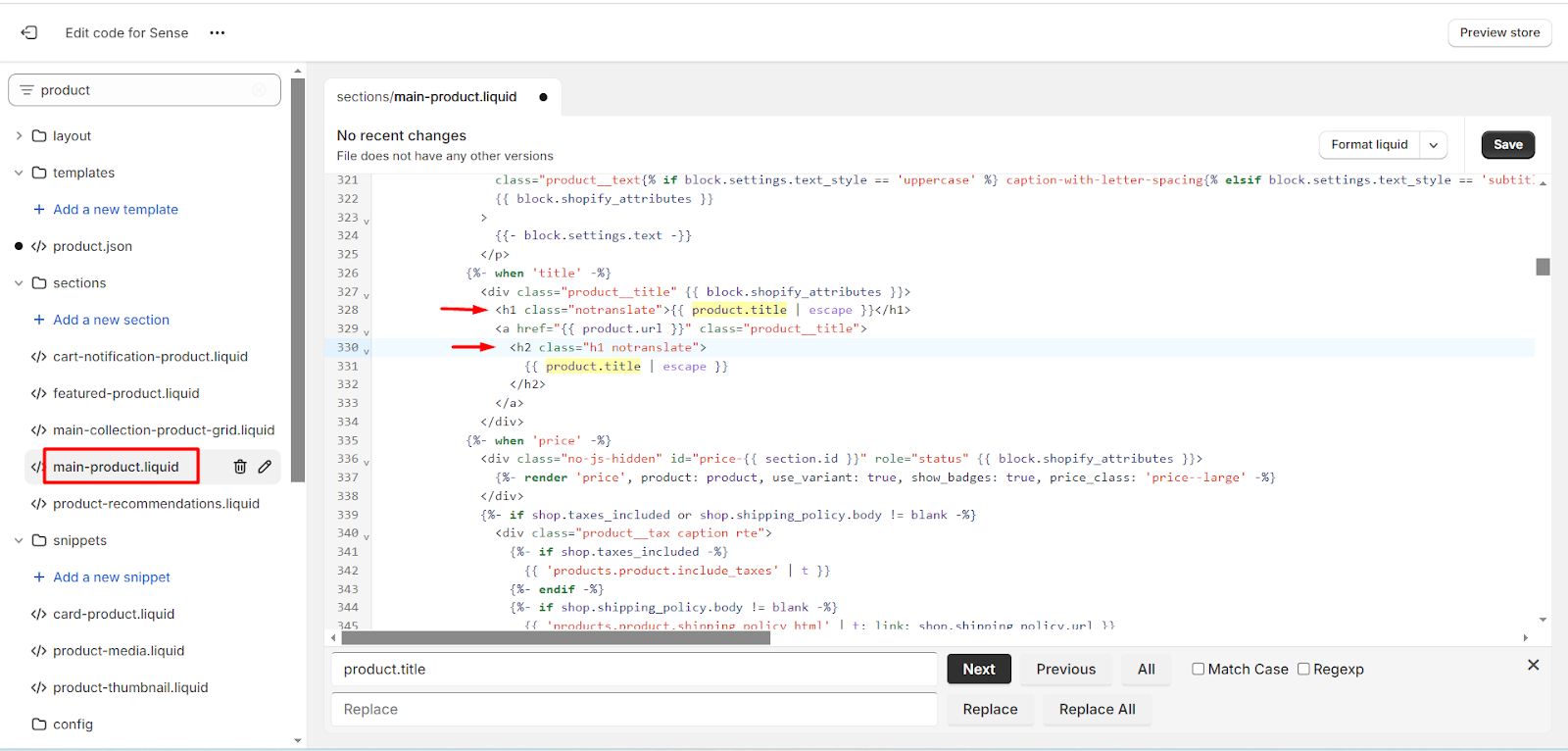
- Open a product page.
- Inspect the product title.
- Locate the corresponding code in your theme.
- Add the
notranslateclass.
Common Liquid variables include:
product.titleproduct_card.title
Prevent Product Vendors from Being Translated
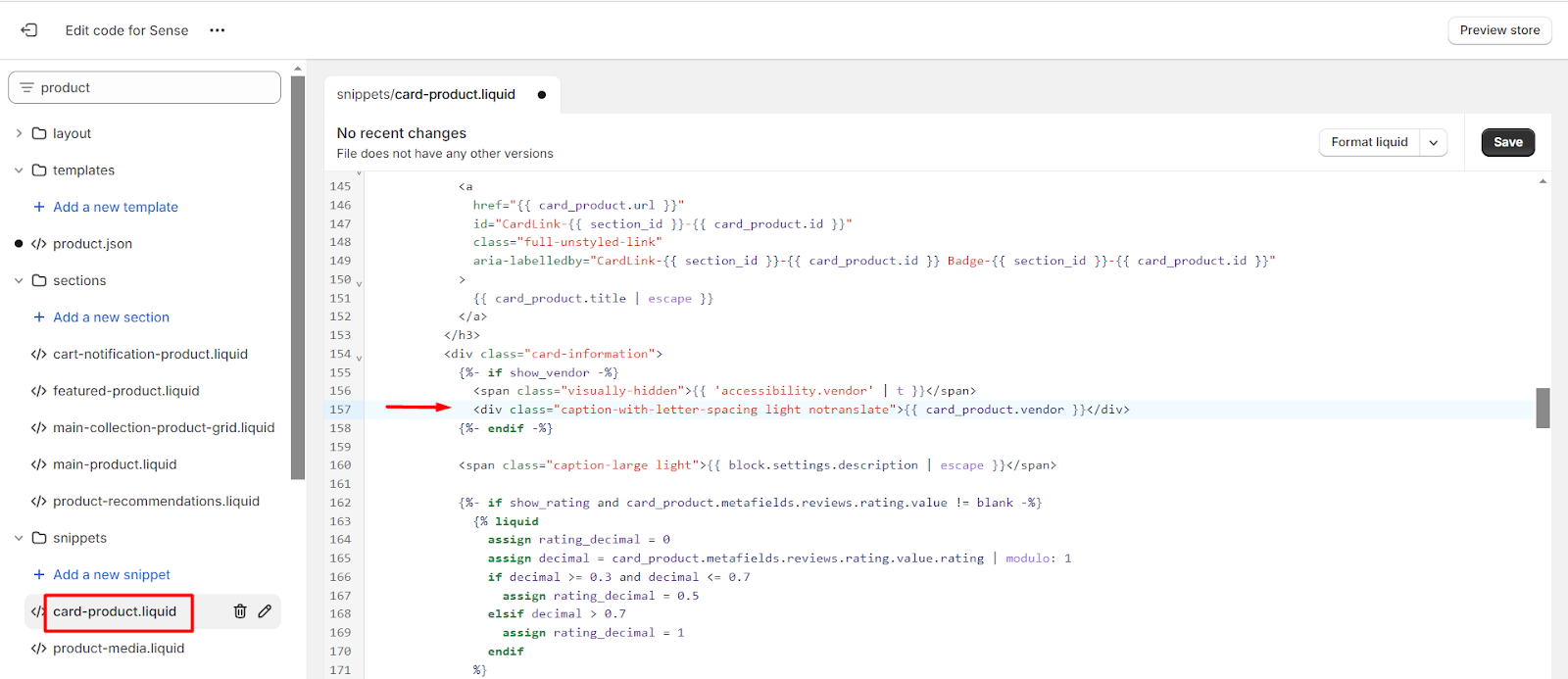
- Inspect the vendor name displayed on the product page.
- Locate the corresponding code.
- Add the
notranslateclass.
Common Liquid variables include:
product.vendorcart-product.vendor
Prevent Footer Content from Being Translated
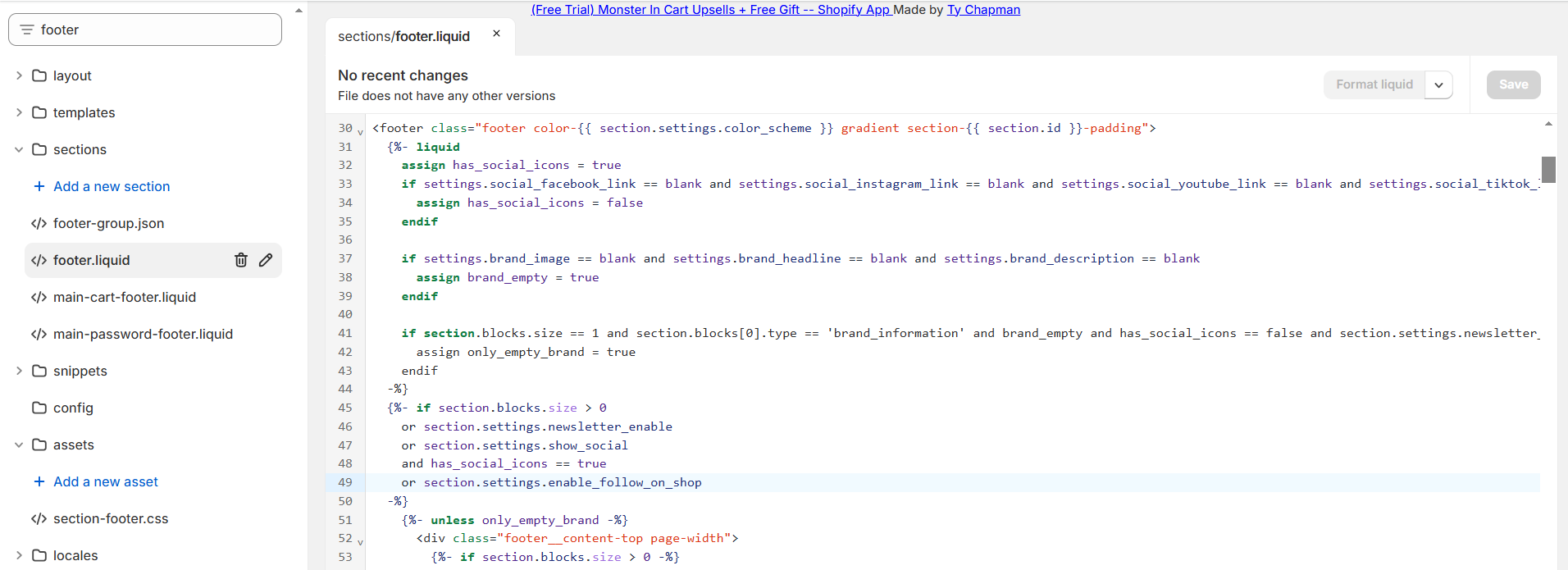
- Inspect any footer content.
- Locate the footer wrapper element in your theme.
- Add the
notranslateclass.
Example:
<footer class="footer notranslate">
  <!-- Footer content -->
</footer>
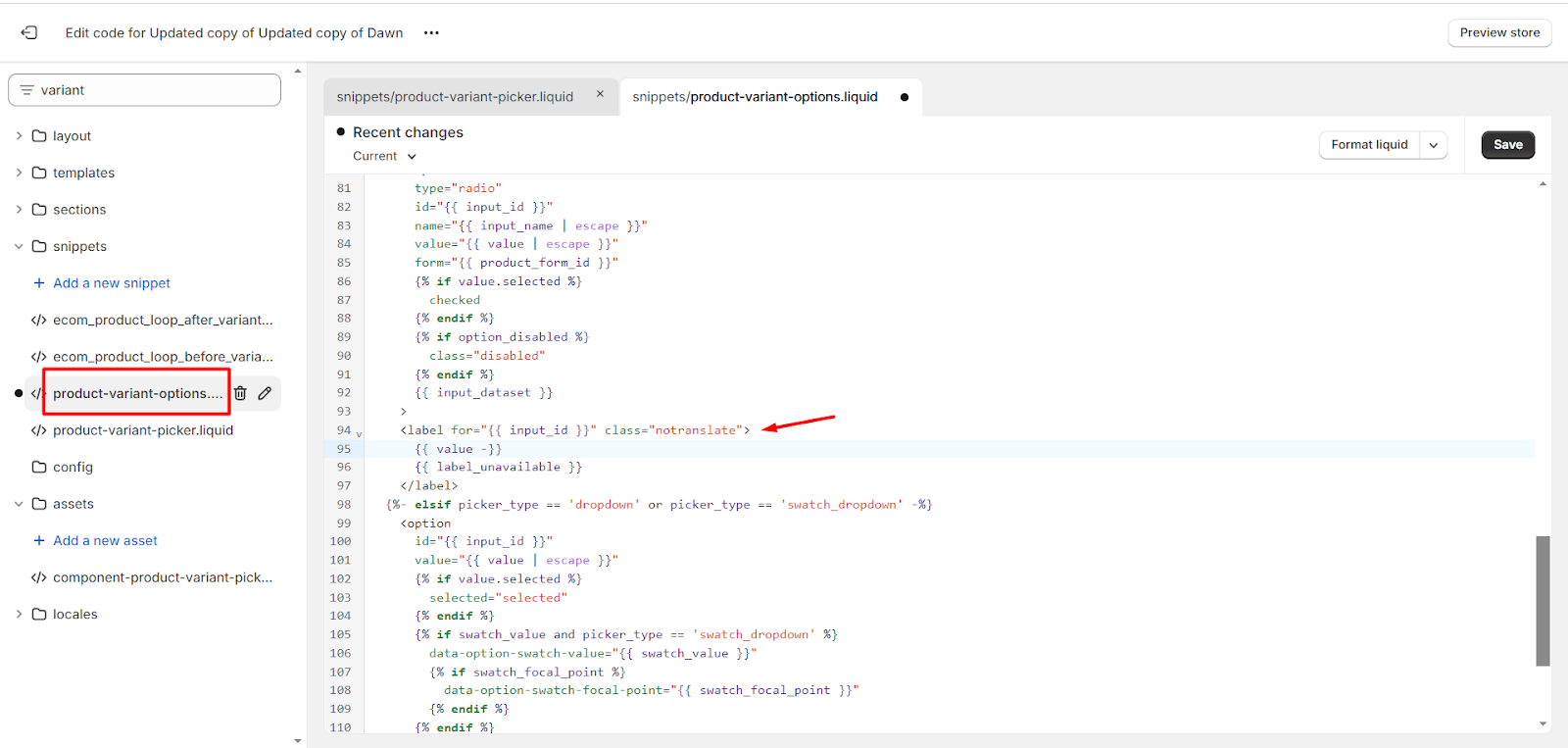
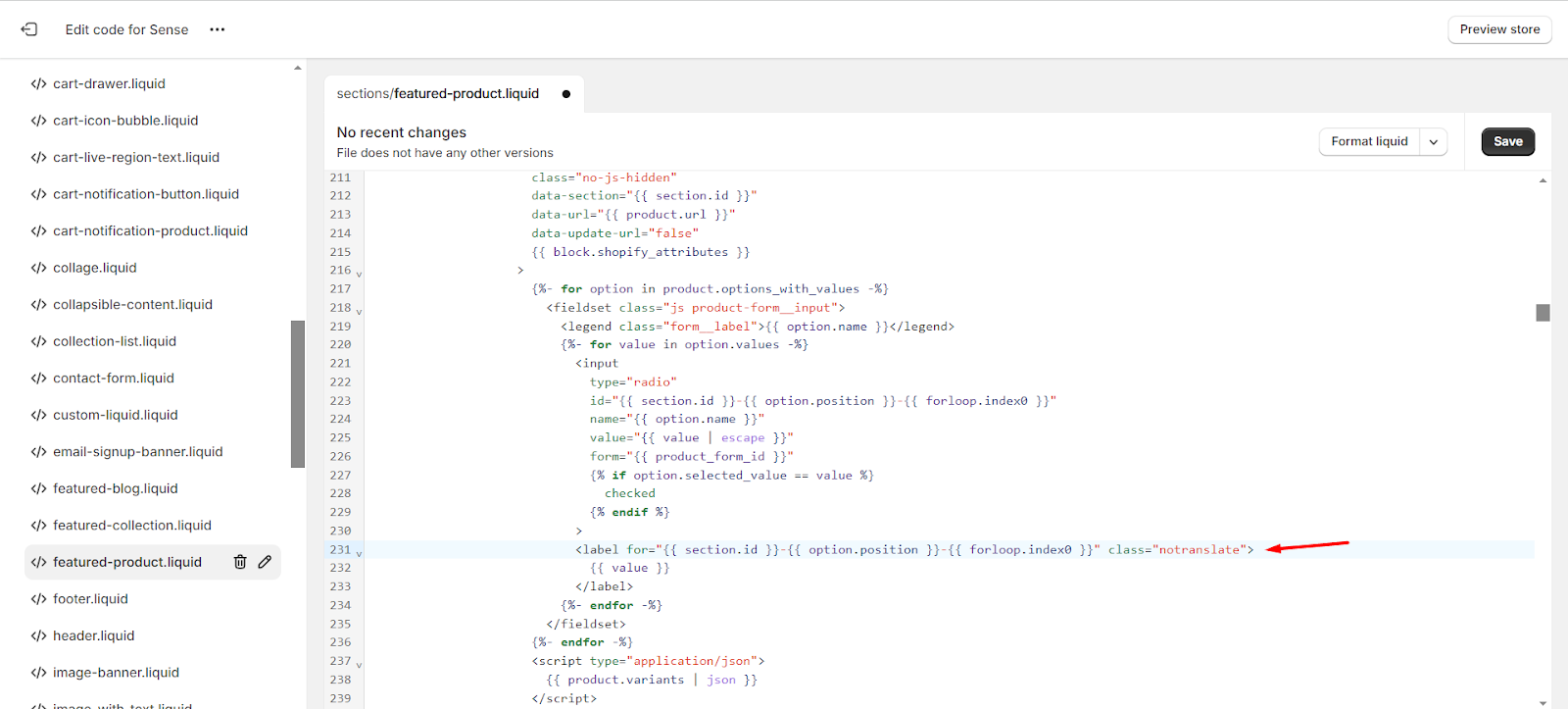
Prevent Product Variants and Options from Being Translated
If you want option values such as Size, Color, or Material to remain unchanged:
- Open a product page.
- Inspect the variant selector or option labels.
- Locate the corresponding code in your theme.
- Add the
notranslateclass to the element that renders the variant value.
Example:
<label for="{{ input_id }}" class="notranslate">
  {{ value }}
</label>
Or:
<select name="id">
  {% for variant in product.variants %}
    <option value="{{ variant.id }}" class="notranslate">
      {{ variant.title }}
    </option>
  {% endfor %}
</select>
Depending on your theme, variant-related code may be located in files such as:
main-product.liquidproduct-form.liquidproduct-template.liquidproduct-variant-options.liquid
After locating the appropriate element, add the notranslate class.
Need Assistance?
If you're unsure which element should receive the notranslate class, contact our support team at [email protected] and we'll be happy to assist.